Part 2 ended with an E01 file whose hash you can prove. This part opens it. An examination tool reads the raw bytes of a disk image and turns them into things a person can follow: files, deleted files, web history, shortcuts, keyword hits, a timeline. That translation is where examinations go right or wrong. Every tool reads some artifacts and not others, applies its own defaults, and shows times in a time zone you may not have chosen.
So this part teaches two tools on the same evidence. Autopsy is free and open source; Magnet Axiom is a commercial suite that many teams use, available as a trial. You will learn each one step by step, then use them to check each other, which is the habit that matters more than either tool.
By the end of this part you will be able to:
- open a verified disk image in Autopsy, choose ingest modules on purpose and find your way around the results;
- search, tag, comment, build a simple timeline and export a report that contains only what you tagged;
- do the same in Magnet Axiom, from Axiom Process to Axiom Examine;
- compare two tools finding by finding, and explain each disagreement instead of picking the answer you like;
- record what you ran and how, so someone else can repeat your examination.
If you are in the middle of a real incident, use our ransomware response playbook instead and come back afterwards. The full syllabus is on the DFIR course page.
What an examination tool does, and why two tools disagree
Both tools follow the same pattern. You create a case, a folder with a database. You add evidence, which the case refers to but does not copy. The tool then runs parsers over it: programs that each understand one kind of data, such as an NTFS file system, a browser history database or a Windows shortcut. Their output is what you review.
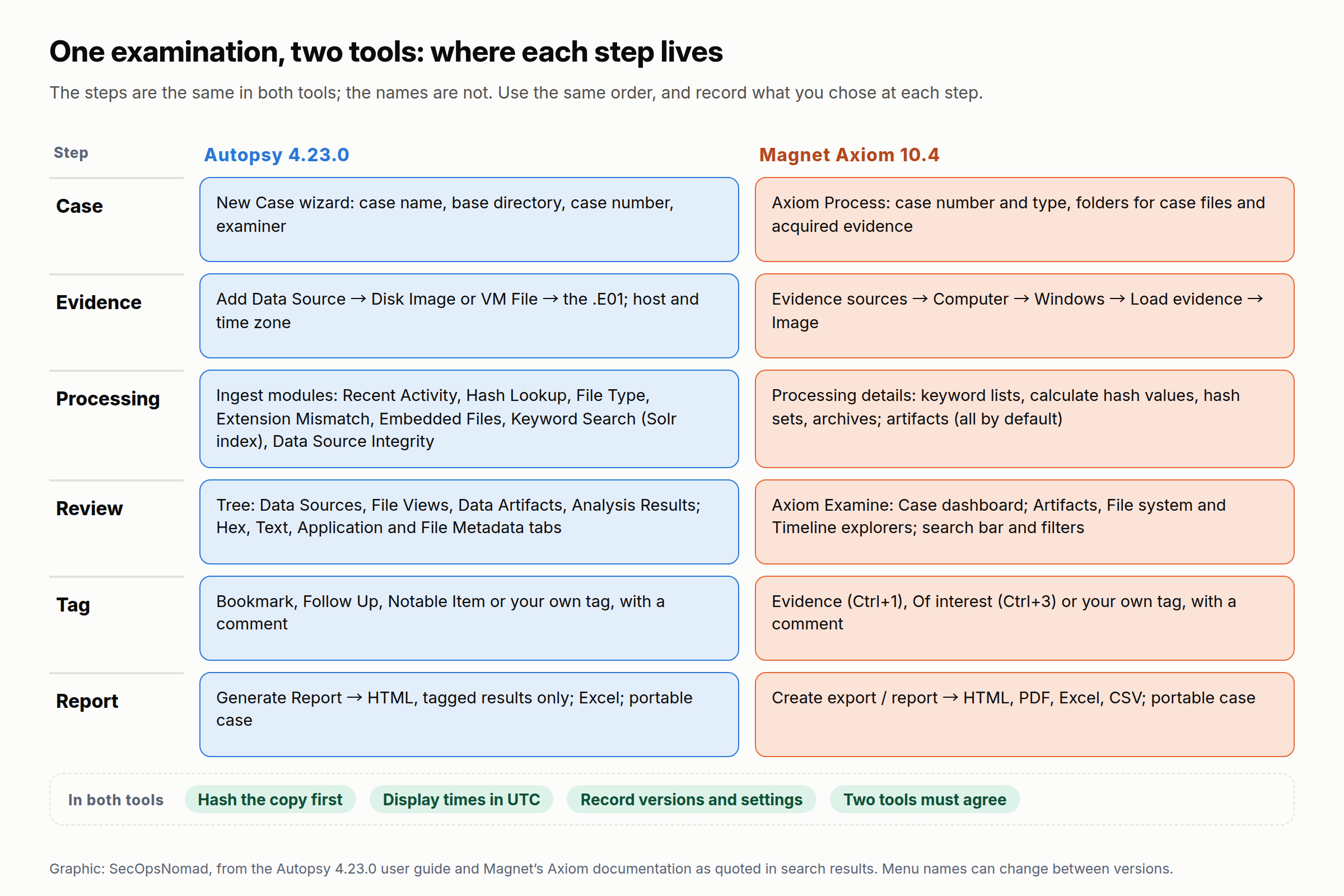
Figure 1. One examination, two tools: where each step lives. Based on the Autopsy 4.23.0 user guide and Magnet’s Axiom documentation.
Two tools reading the same image disagree for ordinary reasons, and almost never because one of them is “wrong” in a simple way:
| Cause | Example | What to check |
|---|---|---|
| A parser one tool has and the other lacks | One tool reads Jump Lists as well as shortcut files; the other reads only the shortcuts in the Recent folder | Each tool’s artifact list for your version |
| A setting, not the evidence | Archives not opened, carving switched off, “known” files hidden | Your settings record (template below) |
| Time zone | The same event nine hours apart | Display time zone in both tools; the offset in your notes |
| Which timestamp | “Created” in one column is the file system’s, in another the artifact’s own | Column definitions; the raw record in the hex view |
| Deleted or reused data | A deleted file shown by one tool and not the other, because its record has been partly overwritten | Go to the raw MFT record; Part 8 does this properly |
Japan’s evidence preservation guideline, 10th edition, asks for the same discipline at collection time: prepare alternative tools in case one fails (section 7-1), record the version of every tool you use (section 7-4-2), and keep the copy for analysis use only, with a chain-of-custody record (section 7-5-1). This part applies those rules to analysis.
Before you open anything
Do these five things every time, in this order. They take minutes and they are what makes the rest defensible.
- Verify the working copy. Hash the image you are about to open and compare it with the hash recorded at acquisition. If they differ, stop and copy it again from the master.
- Use a separate case folder for each tool. Both tools write a database and temporary files; keep them apart from each other and from the evidence folder.
- Keep antivirus out of the case folder. Part 1 added a Defender exclusion for
C:\Cases; Autopsy’s installation guide recommends this because antivirus can quarantine extracted files and change your results. - Set the display time zone to UTC in each tool before you read a single time, and write down that you did.
- Start the settings record (template at the end): tool, version, the evidence’s hash, and every module, artifact and option you select. Japan’s guideline expects tool versions to be recorded (section 7-4-2); a reviewer needs them to repeat your work.
Autopsy, step by step
These steps follow the Autopsy 4.23.0 user guide. Exercise 3 below tells you exactly which values to enter; read this section first to know where everything is.
1. Create the case
- On the welcome screen choose New Case, or use Case → New Case.
- Enter a Case Name and a Base Directory. Autopsy creates a folder named after the case inside the base directory; if it already exists, choose another name. Leave the case type as single-user.
- On the next screen, fill in the Case Number and the examiner’s name. Every field here is optional, but they appear in your reports, so fill them in.
- Choose Finish. Autopsy opens the case and starts the Add Data Source wizard. The case folder holds a
.autfile you will use to open the case again later.
2. Add the data source
- Select host: choose Generate new host based on data source name. A host groups the data sources from one computer.
- Select data source type: choose Disk Image or VM File. Autopsy 4.23 reads raw images, split raw images, E01, VMDK, VHD and VHDX.
- Select data source: browse to the first file of the image (
.E01; Autopsy finds the other segments itself). Set the time zone to the one the computer used. It matters most for FAT volumes, which store local times; NTFS stores UTC. Leave the sector size on auto-detect. You do not need to type a hash for an E01: the hash recorded at acquisition is inside the file. - Remember that Autopsy does not copy the image into the case; the case points to it. Do not move or rename the image while the case exists.
3. Choose the ingest modules
Ingest modules are Autopsy’s parsers. You choose them per data source, and you can run more later by right-clicking the data source and choosing Run Ingest Modules. At the top, leave the filter on All files, directories, and unallocated space. For a first Windows case, this selection covers the essentials without hours of waiting:
| Module | What it does | First case? |
|---|---|---|
| Recent Activity | Extracts browser history, recent documents, installed programs and other operating-system activity; runs RegRipper on registry hives | Yes |
| Hash Lookup | Calculates each file’s MD5 (and SHA-256) and compares the MD5 with hash sets you choose: known files to ignore, notable files to flag | Yes, with your notable set |
| File Type Identification | Identifies each file’s type from its content, not its name; other modules depend on it | Yes |
| Extension Mismatch Detector | Flags files whose extension does not match their detected type | Yes |
| Embedded File Extractor | Opens ZIP, RAR and other archives, and Office documents, and sends what is inside back through ingest | Yes |
| Keyword Search | Extracts text and searches it; with Add text to Solr Index ticked, you can search for anything later | Yes, with Solr indexing ticked |
| Data Source Integrity | Verifies an E01’s stored hash, or calculates the image’s hashes if none are stored | Yes |
| Interesting Files Identifier | Flags files and folders matching rules you write | Optional |
| PhotoRec Carver, Plaso | Carve deleted files from unallocated space; build a much larger timeline | Not on a first pass: they add hours |
Two settings deserve a second look before you start. In Keyword Search, tick Add text to Solr Index: since version 4.21, without it Autopsy runs only an in-line search during ingest, and searches you think of afterwards will not cover the whole image. In Hash Lookup, tick the hash sets you want; you add new ones with the Advanced button or in Tools → Options → Hash Sets.
4. Let ingest run, and read the inbox
- Ingest runs in the background; a progress bar sits at the bottom right. Autopsy processes the Users folder before Windows, so user files appear first. You can start browsing straight away, but results are not complete until ingest finishes.
- Watch the Ingest Inbox (the message icon at the top right). Data Source Integrity posts a message saying whether the E01’s stored hash verified; open it to see the stored and calculated values. A failed check also adds a “Verification Failed” result that stays in the case.
- If you need to know what ingest is doing, Help → Get Ingest Progress Snapshot shows the module and file being processed.
5. Find your way around
Autopsy’s window has three parts: the tree on the left, the result viewer at the top right and the content viewer at the bottom right. The tree has seven areas:
| Area | What it holds |
|---|---|
| Data Sources | The file system as it is in the image, organised by host: folders, files, and $Unalloc for unallocated space |
| File Views | All files sorted by type (extension or MIME type), deleted files and file size |
| Data Artifacts | What ingest extracted: web history, recent documents, installed programs, OS information and more |
| Analysis Results | Results that mean something to you: hash set hits, keyword hits, extension mismatches, interesting items |
| OS Accounts | User accounts found in the image |
| Tags | Everything you have tagged |
| Reports | Reports you generated |
Select a file and the content viewer’s tabs show it in different ways: Hex for the raw bytes, Text for its strings and indexed text, Application for a picture, web page, SQLite database or registry hive, and File Metadata for its times, size, hashes and its NTFS record (the Sleuth Kit’s istat output). In any result list, right-click an item and choose to view it in its folder: what else the user kept next to it is often the next lead.
To read every time in UTC, open the gear icon above the tree (or Tools → Options → Views) and set the time format to UTC.
6. Search
- Keyword search box at the top right: type a term and choose exact match, substring match or a regular expression. Results land under Analysis Results → Keyword Hits; select a hit and use the Text tab to see the word in context. (Autopsy’s keyword guide calls this view “Extracted Text”.)
- Keyword lists: in the Keyword Search module’s settings, a list you create is searched during ingest, and hits can also be sent to the inbox.
- File Search by Attributes (Tools menu): find files by name, size, MIME type, MD5, a date range for created, modified, accessed or changed times, or known status. It does not support regular expressions; keyword search does.
7. Tag and comment
Tags are how you mark what matters, and the report and portable case are built from them.
- Right-click a file or a result and choose Add File Tag or Add Result Tag. Tag the result when the result itself is the finding (a keyword hit, a hash hit); tag the file when the file is.
- Choose a default tag: Bookmark, Follow Up, Notable Item, or the law-enforcement categories CAT-1 to CAT-5. Ctrl+B applies Bookmark.
- Choose Tag and Comment to write why it matters, or New Tag to create a tag of your own, such as the case number. Your own tags are listed above the default ones next time.
- Everything tagged appears under Tags in the tree, with the user who tagged it and any comment.
8. Build a simple timeline
- Open Tools → Timeline (or the Timeline button). It opens in the Counts view: bars showing how many events happened in each period.
- Set the time zone to UTC (the Timeline has its own setting), then narrow the time range to the window you care about: type the start and end, or drag across the bars and double-click.
- Switch to the Details view to see events grouped by type and description, or the List view to see every event in order. The list is the most useful view for a short window.
- Use the filters on the left: event types (file system modified, accessed, created and changed; web activity; recent documents and more), a text filter, and Hide Known Files if you ran a known hash set.
- Events have a time, a type and a description. A file system event says only that a timestamp holds that value; it does not say who or what caused it.
9. Export the report
- Choose Generate Report on the toolbar.
- For an HTML report, enter a header and footer if your organisation needs a classification marking, then choose Tagged Results and the tags to include. All Results produces everything ingest found, which is rarely what a reader needs.
- The report appears under Reports in the tree and in the case’s
Reportsfolder. Double-click it to open it in a browser. - Other formats in the same dialog: Excel, Files - Text (a delimited list of every file), TSK Body File for other timeline tools, CASE-UCO (JSON) and Portable Case, a smaller Autopsy case containing only your tagged items that a colleague can open, with the Autopsy application included if they do not have it.
Magnet Axiom, step by step
Axiom is split into two programs. Axiom Process creates the case, loads evidence and runs the parsers; Axiom Examine is where you review, tag, search and report. Magnet offers a free 30-day trial covering computer, mobile and cloud evidence, requested through a form on its trial page. Version 10.4, released on 23 September 2026, was current when we wrote this.
- Hardware. Magnet suggests 16 logical processor cores and 32 GB of memory, with about 2 GB of memory per core; the software runs on 4 cores and 8 GB, slowly. ANALYST from Part 1 is below Magnet’s suggestion, so expect processing to take an hour or more.
- Activation. If your licence has to be activated online, attach ANALYST’s network adapter (NAT) only while you install and activate it, then set it back to Not attached. Record both times: they are part of your machine’s history.
- Menu names. Magnet’s documentation, which we could only read through search results, describes slightly different paths in different versions. If a name below does not match your screen, the steps and the order still apply.
1. Create the case in Axiom Process
- Open Axiom Process and choose to create a new case.
- In the case details, enter the case number and case type, and choose where to save the case files and any acquired evidence. Use a folder of its own, not Autopsy’s.
- Fill in the examiner details. Magnet notes that the case number, case type and these details appear in HTML, PDF and portable-case reports.
- Axiom Process marks any required step you skip with a warning symbol and will not start processing until it is complete.
2. Load the evidence
- Choose Evidence sources → Computer → Windows → Load evidence → Image. (Loading uses an existing image; acquiring creates a new one.)
- Browse to the
.E01file. Magnet’s documentation lists EnCase images (E01 and Ex01), AFF4, raw images and virtual machine disks (VHD, VHDX and VMDK) among the supported formats. Magnet itself recommends an image over a live drive or a folder whenever possible. - Select the partitions to include. For a first case, include all of them and choose the full search, not a quick one.
3. Processing details
Processing details decide what Axiom looks for beyond its standard artifacts. Set these before you start:
- Keyword search. Add your keywords, or load a list: a plain text file with one term per line, or Magnet’s
.kwsformat, which keeps regular-expression settings. If you are offered a choice of scope, “all content” searches the whole disk in the encodings you pick (ASCII, UTF-8, UTF-16), while “artifacts” searches only parsed artifacts and is faster. For a first case, search all content. - Calculate hash values. Tick it, with MD5, so that every file is hashed and can be matched against hash sets.
- Hash sets. Import your notable hashes as a text file with one MD5 per line. Axiom tags files that match an imported hash set.
- Archives and carving. Axiom can look inside archives, including nested ones, and can carve deleted files from unallocated space. Searching archives is what this exercise needs; carving can wait (you can run it later from Axiom Examine with Process → Reprocess artifacts with carving).
4. Artifacts, and start
- On the artifacts screen, keep the default: Axiom searches for all supported artifacts unless you limit it. Write down that you kept the default.
- Review the summary, then choose Analyze evidence. Axiom Process runs, and opens Axiom Examine when processing finishes. Record the start and end times.
5. Review in Axiom Examine
- Examine opens on the Case dashboard: a case overview, an evidence overview and a Places to start column listing artifact categories, tags and keyword matches. Each link filters the view.
- Before you read any time, set the display time zone: Tools → Manage date / time format, choose UTC and make it the default for your cases. Some artifacts hold local times without an offset; Axiom shows them as text, and date filters skip them unless you apply a UTC offset.
- Switch between the explorers from the menu at the top:
- Artifacts explorer for parsed artifacts by category. Windows shortcut files, Jump Lists and Prefetch are under Operating System; pictures, documents and web history have categories of their own.
- File system explorer for the file system as it is in the image, including deleted files.
- Timeline explorer for events from artifacts and the file system on one time axis.
- Connections explorer for links between files, people and artifacts. You will not need it in this part.
6. Search and filter
- The search bar filters the current explorer. In the Artifacts and Timeline explorers it searches every field except dates and times, plus the text of documents and media; in the File system explorer it searches file paths, not file contents. To find a word inside files, use your keyword results (Case dashboard → keyword matches) rather than the search bar.
- The Filters bar narrows results by evidence source, artifact type, tag and more. Date and time → Absolute date / time limits everything to your window.
7. Tag
- Right-click an artifact, a file or a selection and choose Add / remove tag.
- The system tags are Evidence (Ctrl+1) and Of interest (Ctrl+3). You can create your own and add comments. Tags and comments travel with exports and portable cases.
8. Timeline
- Open the Timeline explorer. The first time, Axiom builds the timeline for the case, which takes a few minutes.
- Use Go to date to jump to your window, and change the scale from years down to minutes.
- Filter by evidence source, by timestamp type (artifact or file system), by timeline category or by date and time.
9. Export a report
- Select the items, or filter to a tag, then right-click and choose Create export / report.
- Choose the format: HTML (open
Report.htmlin a browser), PDF, Excel, CSV (no attachments), XML or a Portable case with a lightweight viewer for colleagues without Axiom. - Under the items to include, choose tagged items to match your Autopsy report. Exports are saved in the case folder, with UTC in their time stamps.
When the tools disagree
A disagreement is a question, not an error message. Work through it in this order, and write down what you did:
- Is it the same thing? Compare the full path, the MFT record number or the file’s hash, not only the name.
- Is it a setting? Time zone, an archive or carving option, a hidden “known” file, a keyword scope. Your settings record answers this.
- Is it the timestamp? Check which timestamp each column shows, and whether one tool shows local time.
- Go to the bytes. Open the item in the hex view of either tool, or extract it and read it with a third tool. In Part 1 you did this with PECmd; below you will use LECmd and MFTECmd.
- Record the outcome, including “unexplained”. A disagreement you report is part of the record. One you resolve by choosing the answer that suits the case is not.
Seen from both sides: hiding from the examiner
Attackers rarely beat a forensic tool head-on. They rely on the examiner trusting names, missing archives or reading a single timestamp. Each move below is visible to an examiner who has the right settings.
| Attacker’s move | ATT&CK | How it fools a quick look | What catches it in Autopsy | What catches it in Axiom | Part |
|---|---|---|---|---|---|
| Rename a file to a harmless extension | T1036.008 | A picture or archive named .txt is skipped |
File Type Identification and Extension Mismatch Detector | Signature-based categories, and the File Signature Mismatch artifact where your version has it | 3 |
| Pack stolen files into an archive before sending them | T1560, T1074.001 | Keyword and hash searches miss files inside | Embedded File Extractor; encrypted archives raise a warning and can be opened with a password | Archive processing in the processing details | 3 |
| Delete the working files | T1070.004 | The folder looks clean | File Views → Deleted Files; content survives while the MFT record is not reused | Deleted files in the File system explorer; carving | 8 |
| Change file timestamps | T1070.006 | A planted file looks years old | Timeline anomalies; comparing the two sets of NTFS times in File Metadata | Timeline explorer; file system timestamps | 8 |
| Encode or encrypt the content | T1027 | Keyword searches find nothing | Encryption Detection; strings in the Text tab | Keyword search in all content, with the right encodings | 9 |
Exercise 3: one case, two tools
You will create six known actions on a fresh TARGET, image it as in Part 2, examine the image in Autopsy and then in Axiom, and fill in a comparison sheet. Your notes are again the answer key.
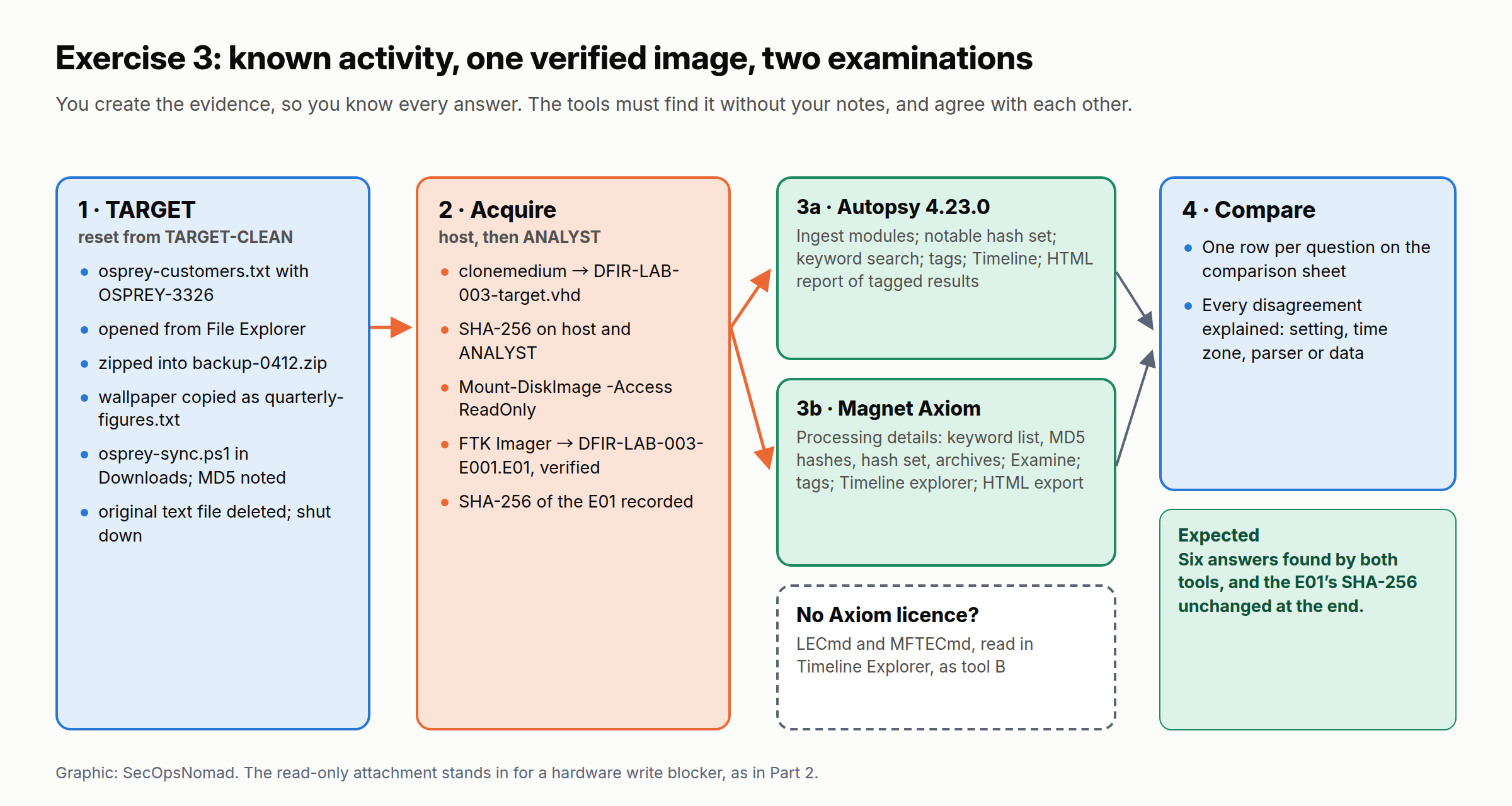
Figure 2. Exercise 3: known activity, one verified image, two independent examinations.
You need:
- TARGET-CLEAN and ANALYST from Part 1, FTK Imager from Part 2, and Autopsy 4.23.0.
- A Magnet Axiom trial licence. If you cannot get one, use LECmd, MFTECmd and Timeline Explorer from Eric Zimmerman’s tools page as your second tool; Part E′ shows how.
- About 100 GB free on ANALYST’s C: drive for the VHD, the E01 and two case folders. Delete Part 2’s working copies from
C:\Cases\DFIR-LAB-002\evidenceif you need space: the masters are on the host and their hashes are in your notes.
Part A: reset TARGET
- On the host, delete the TARGET virtual machine from VirtualBox (choose to delete its files). Part 2’s master copies stay in your staging folder.
- Right-click TARGET-CLEAN, choose Clone, make a full clone and name it
TARGET. Starting from the reset point means the only new user activity on the disk is what you do next. - Start TARGET, log on and open PowerShell (not as administrator). Run
Get-Date -Format oand write the result in your notes on the host, with the host’s own time beside it.
Part B: create the activity on TARGET
Run each block in the same PowerShell window and copy each time it prints into your notes on the host.
Create the customer list:
$docs = [Environment]::GetFolderPath('MyDocuments')
Set-Content -Path "$docs\osprey-customers.txt" -Value 'OSPREY-3326 customer list: Sapporo 41, Sendai 28, Niigata 17'
Get-Date -Format o
Open it the way a user would: in File Explorer, go to Documents and double-click
osprey-customers.txt. Read it, close Notepad without changing anything, and runGet-Date -Format oin PowerShell. Opening a file from File Explorer is what leaves a shortcut in the user’s Recent folder.Put a copy in an archive:
Compress-Archive -Path "$docs\osprey-customers.txt" -DestinationPath "$docs\backup-0412.zip"
Get-Date -Format o
Disguise a picture as a text file. Windows ships wallpaper images; take the first one:
$jpg = Get-ChildItem -Path 'C:\Windows\Web\Wallpaper\Windows' -Filter '*.jpg' | Select-Object -First 1
Copy-Item -Path $jpg.FullName -Destination "$docs\quarterly-figures.txt"
$jpg.Name
Get-Date -Format o
Write down the wallpaper’s name.
Plant a small script and record its MD5. You will use the MD5 as a “known bad” hash set:
$dl = Join-Path $env:USERPROFILE 'Downloads'
Set-Content -Path "$dl\osprey-sync.ps1" -Value 'Write-Output "OSPREY-3326 sync test"'
Get-FileHash -Path "$dl\osprey-sync.ps1" -Algorithm MD5 | Format-List Hash
Get-Date -Format o
Delete the original list.
Remove-Itemdoes not use the Recycle Bin:Remove-Item -Path "$docs\osprey-customers.txt" Get-Date -Format oShut TARGET down from the Start menu, and note the time.
Part C: acquire the image
This repeats Part 2, Part C, with new names. On a Windows host:
& 'C:\Program Files\Oracle\VirtualBox\VBoxManage.exe' clonemedium "$env:USERPROFILE\VirtualBox VMs\TARGET\TARGET.vdi" 'C:\dfir-staging\DFIR-LAB-003-target.vhd' --format VHD
Get-FileHash -Path 'C:\dfir-staging\DFIR-LAB-003-target.vhd' -Algorithm SHA256 | Format-List
On a macOS or Linux host:
VBoxManage clonemedium ~/"VirtualBox VMs/TARGET/TARGET.vdi" ~/dfir-staging/DFIR-LAB-003-target.vhd --format VHD
shasum -a 256 ~/dfir-staging/DFIR-LAB-003-target.vhd
Then, on ANALYST, in PowerShell run as administrator:
Create the case folders, copy the VHD in, hash it and attach it read-only:
$case = 'C:\Cases\DFIR-LAB-003'
'evidence', 'autopsy', 'axiom', 'exports', 'notes' | ForEach-Object { New-Item -ItemType Directory -Path (Join-Path $case $_) -Force | Out-Null }
Copy-Item -Path '\\VBoxSvr\dfir-staging\DFIR-LAB-003-target.vhd' -Destination "$case\evidence\"
Get-FileHash -Path "$case\evidence\DFIR-LAB-003-target.vhd" -Algorithm SHA256 | Format-List
Mount-DiskImage -ImagePath "$case\evidence\DFIR-LAB-003-target.vhd" -Access ReadOnly -NoDriveLetter
Get-DiskImage -ImagePath "$case\evidence\DFIR-LAB-003-target.vhd" | Get-Disk | Format-List Number, IsReadOnly
The hash must match the host’s and
IsReadOnlymust beTrue.In FTK Imager, image that physical drive to E01 exactly as in Part 2: case number
DFIR-LAB-003, evidence numberE001, destinationC:\Cases\DFIR-LAB-003\evidence, file nameDFIR-LAB-003-E001, with Verify images after they are created ticked. Record the MD5 and SHA-1 it reports.Detach the VHD and take the SHA-256 of both files. Keep this value: you will check the E01 against it again at the very end.
Dismount-DiskImage -ImagePath 'C:\Cases\DFIR-LAB-003\evidence\DFIR-LAB-003-target.vhd'
Get-FileHash -Path 'C:\Cases\DFIR-LAB-003\evidence\DFIR-LAB-003-target.vhd', 'C:\Cases\DFIR-LAB-003\evidence\DFIR-LAB-003-E001.E01' -Algorithm SHA256 | Format-List
Create the two small input files both tools will use, putting your own MD5 from Part B step 5 in the second line:
Set-Content -Path 'C:\Cases\DFIR-LAB-003\notes\keywords.txt' -Value 'OSPREY-3326'
Set-Content -Path 'C:\Cases\DFIR-LAB-003\notes\notable-md5.txt' -Value 'PASTE-YOUR-MD5-HERE'
Part D: examine it in Autopsy
Answer the questions in “Check your answers” from the evidence alone, before you look at your notes.
- Create a case named
DFIR-LAB-003with its base directory inC:\Cases\DFIR-LAB-003\autopsy, case numberDFIR-LAB-003and your name as examiner. - Before adding the data source, open Tools → Options → Hash Sets, choose New Hash Set, name it
DFIR-LAB-003 notable, set its type to Notable, and save it inside the case’snotesfolder. Select it, choose Add Hashes to Hash Set and paste your MD5. - Add the E01 as a Disk Image or VM File, with the time zone TARGET used.
- Select the modules from step 3 of the Autopsy walk-through: Recent Activity, Hash Lookup (with
DFIR-LAB-003 notableticked), File Type Identification, Extension Mismatch Detector, Embedded File Extractor, Keyword Search (with Add text to Solr Index ticked) and Data Source Integrity. Record the selection in your settings record. - When ingest finishes, check the inbox for the Data Source Integrity result, set the time format to UTC, and search for
OSPREY-3326with a substring match. - Create a tag of your own named
DFIR-LAB-003 finding. Tag every item that answers a question, using Tag and Comment to note which question it answers. - Open the Timeline, set it to UTC, and limit it to the window from the first to the last time in your notes. Use the List view.
- Generate an HTML report of Tagged Results with your tag, and open it.
Part E: examine the same image in Axiom
- In Axiom Process, create a case with case number
DFIR-LAB-003-AX, saving case files inC:\Cases\DFIR-LAB-003\axiom. - Load the E01 through Evidence sources → Computer → Windows → Load evidence → Image, all partitions, full search.
- In the processing details, load
keywords.txtas a keyword list (search all content if you are offered the choice), tick Calculate hash values with MD5, importnotable-md5.txtas a hash set, and leave archive searching on. Keep the default artifacts. Record every choice. - Choose Analyze evidence and wait for Axiom Examine to open.
- Set the time zone to UTC (Tools → Manage date / time format), then answer the same questions without looking at your Autopsy results.
- Tag the items that answer them with Evidence, adding a comment naming the question.
- Open the Timeline explorer and go to your window.
- Export the tagged items as HTML and open
Report.html. - Fill in the comparison sheet (template below), one row per question.
Part E′: without Axiom, use Eric Zimmerman’s tools
In Autopsy, go to the user’s
AppData\Roaming\Microsoft\Windows\Recentfolder, select the.lnkfiles, right-click and choose Extract File(s) toC:\Cases\DFIR-LAB-003\exports\recent.In the root of the Windows volume, select
$MFTand extract it toC:\Cases\DFIR-LAB-003\exports.Extract LECmd, MFTECmd and Timeline Explorer into
C:\Tools\EZToolswith 7-Zip, as you did for PECmd in Part 1, and check their signatures.Parse both:
& 'C:\Tools\EZTools\LECmd.exe' -d 'C:\Cases\DFIR-LAB-003\exports\recent' --csv 'C:\Cases\DFIR-LAB-003\exports' --csvf lnk.csv
& 'C:\Tools\EZTools\MFTECmd.exe' -f 'C:\Cases\DFIR-LAB-003\exports\$MFT' --csv 'C:\Cases\DFIR-LAB-003\exports' --csvf mft.csv
Open both CSV files in Timeline Explorer. In
mft.csv, filter the file name column forospreyandquarterly, and look at theInUsecolumn (False for a deleted file) and the timestamps. Fill in the comparison sheet with LECmd and MFTECmd as tool B.
Check your answers
| Question | In Autopsy | In Axiom | Why |
|---|---|---|---|
| 1. Which file containing OSPREY-3326 did the user open, and does it still exist? | Data Artifacts → Recent Documents: a shortcut to Documents\osprey-customers.txt. File Views → Deleted Files: the same file, marked deleted, its text readable in the Text tab |
Operating System → LNK Files (Jump Lists too); the File system explorer shows the file as deleted | Opening a file from File Explorer writes a shortcut to the Recent folder. Remove-Item marks the MFT record unused; a file this small lives inside its record, so its text survives until Windows reuses the record |
| 2. Where else does the marker survive? | Keyword Hits for OSPREY-3326: the deleted file; osprey-customers.txt inside backup-0412.zip (shown as a child of the archive); Downloads\osprey-sync.ps1; PowerShell’s ConsoleHost_history.txt |
Keyword matches in the same files, if archive searching and the all-content scope were on | The archive kept a copy. PSReadLine saved your command lines, which contained the marker, as in Part 2 |
| 3. Which file is not what its name says? | Analysis Results → Extension Mismatch Detected: quarterly-figures.txt, detected as image/jpeg. Its Created time is step 4; its Modified time is the wallpaper’s, years earlier |
Listed among pictures despite its name; a File Signature Mismatch artifact where your version has it | Both tools read the file’s first bytes (FF D8 FF for JPEG), not its name. A copy keeps the source’s modified time, as in Part 1 |
| 4. Which file matches your notable hash set? | Analysis Results → Hashset Hits → DFIR-LAB-003 notable: Downloads\osprey-sync.ps1 |
Tagged by the hash set match; filter by tag or look in Places to start | The MD5 identifies content, whatever the file’s name or location |
| 5. In what order did it happen? | Timeline, List view, UTC: created osprey-customers.txt; recent-document shortcut created; backup-0412.zip created; quarterly-figures.txt created; osprey-sync.ps1 created. The deletion has no event of its own: the Documents folder’s Modified time moves to step 6 |
Timeline explorer: the same file system events in the same order, plus the shortcut’s own timestamps | Deleting a file changes its parent folder, not the file’s own times. Part 8 reads the change journal, which records the deletion itself |
| 6. Do the tools agree, and is the evidence unchanged? | The inbox shows the E01’s stored hash verified | — | Your sheet has six rows, each either agreeing or explained. The E01’s SHA-256 at the end matches the value from Part C step 3 |
Expect some differences, and explain each one on the sheet. The most common are a nine-hour shift (one tool not on UTC), Axiom reporting more shortcut evidence than Autopsy (it parses Jump Lists as well as the Recent folder), and a missing archive hit (archive searching or the keyword scope was off). If osprey-customers.txt is missing from both tools’ deleted files, Windows reused its MFT record before shutdown; question 2 still finds the copy in the archive, which is exactly why investigators look in more than one place.
Finally, hash the E01 again:
Get-FileHash -Path 'C:\Cases\DFIR-LAB-003\evidence\DFIR-LAB-003-E001.E01' -Algorithm SHA256 | Format-List
It must match the value from Part C step 3. Two tools have read it for hours; neither may have changed it.
What professionals add
- Validate tools with known answers. This exercise is a small known-answer test. Labs repeat one whenever a tool updates, and Japan’s guideline recommends tools tested by NIST’s Computer Forensics Tool Testing (CFTT) programme (section 6-3-2).
- Report what you did not do. “No results” means nothing unless the reader knows what was searched. List the modules and artifacts you left out, such as carving, unallocated space or archives, and why.
- Never let one tool decide a key fact. Anything that will be quoted, such as a time, an execution or a deletion, needs a second tool or a reading of the raw bytes.
- Keep the case reproducible. Keep the tool versions, ingest profiles, keyword lists and hash sets with the case, so that a colleague, or you in a year, can produce the same results.
- Have the work reviewed. A second examiner reading your comparison sheet will find the assumption you did not notice.
Templates
Examination settings record. One per tool per evidence item; fill it in as you configure, not afterwards.
EXAMINATION SETTINGS RECORD
Case ID:            DFIR-LAB-003
Examiner:
Workstation:        ANALYST (Windows build, CPU cores, RAM)
Evidence item:      E001  DFIR-LAB-003-E001.E01
SHA-256 before:                              after:
Stored hash check:  [ ] verified by (tool)   result:

Tool and version  | Started (UTC) | Finished (UTC) | Modules / artifacts selected | Options (filters, archives, carving) | Display time zone
------------------|---------------|----------------|------------------------------|--------------------------------------|------------------
                  |               |                |                              |                                      | UTC

Hash sets:          name, type (notable / known), number of hashes, source
Keyword lists:      name, terms, match type (exact / substring / regex), scope
Not processed:      (carving, unallocated space, archives, memory ...) and why
Network:            attached from (UTC) to (UTC), reason
Tool comparison sheet. One row per question or finding; an empty “why” column is not allowed.
TOOL COMPARISON SHEET
Case ID:            DFIR-LAB-003
Tool A:             Autopsy 4.23.0
Tool B:             (Magnet Axiom version, or LECmd / MFTECmd versions)

#  | Question or finding          | Tool A: where, value (UTC)     | Tool B: where, value (UTC)     | Agree? | If not, why, and how you checked
---|------------------------------|--------------------------------|--------------------------------|--------|---------------------------------
1  |                              |                                |                                |        |
2  |                              |                                |                                |        |
What comes next
Part 4: proving a program ran. You will read Prefetch, Amcache, Shimcache, BAM, UserAssist and SRUM with Eric Zimmerman’s tools, and learn how strong each one is as evidence of execution: which show that a program ran, which only that it existed, and which can be wrong. Keep the DFIR-LAB-003 case folders: part 11 builds its timeline and report on them.
Sources
- Autopsy 4.23.0 user guide: Quick Start Guide, Cases, Data Sources, Ingest Modules, Recent Activity, Hash Lookup, Extension Mismatch Detector, Embedded File Extraction, Keyword Search, Data Source Integrity, Tree Viewer, Content Viewer, View Options, File Search, Tagging and Commenting, Timeline, Reporting and Portable Cases.
- Magnet Forensics: trial page, licence packages, release notes, and the Axiom documentation on loading an image, calculating hash values, the Case dashboard, examining evidence, tagging, filtering by date and time, the timeline, Examine settings and the export wizard; the blog posts on processing, keywords and hardware for peak performance.
- Eric Zimmerman: LECmd (version 1.4.0.0 README) and MFTECmd; tools page.
- Institute of Digital Forensics (デジタル・フォレンジック研究会), 証拠保全ガイドライン 第10版 (15 March 2025): sections 6-3-2, 7-1, 7-3, 7-4-2 and 7-5-1.
- Microsoft Learn: Get-FileHash, Compress-Archive, Remove-Item and Mount-DiskImage.
- MITRE ATT&CK: T1036.008, T1560, T1074.001, T1070.004, T1070.006 and T1027.
Published 28 October 2026. Checked against primary sources collected into this site’s repository: the Autopsy 4.23.0 user guide (cases, data sources, ingest modules, Recent Activity, Hash Lookup, Extension Mismatch Detector, Embedded File Extraction, Keyword Search, Data Source Integrity, tree and content viewers, view options, file search, tagging, timeline, reporting and portable cases), the LECmd README and MFTECmd documentation, and the Institute of Digital Forensics guideline (10th edition); and against Microsoft Learn for the PowerShell commands. Not opened directly from our research environment: Magnet Forensics’ product pages, documentation and release notes, MITRE ATT&CK and NIST. For Magnet Axiom we relied on search results that quote Magnet’s documentation and blog, for version 10.4 (23 September 2026), so menu names may differ in your version. Which Windows shortcut and Jump List entries appear after opening a file depends on Windows’ privacy settings for recent items; the answers above assume the defaults. If a step does not work as described, the tool’s own documentation wins; please tell us and we will correct the lesson.